
TOPIARLY EXTENSION GUIDE
How Topiarly Works: Two Ways to Manage ChatGPT Chats
Choose conversations directly in the ChatGPT sidebar with Quick Select, or open the separate Topiarly Manager to search, archive, unarchive and delete chats. Each workspace keeps its own selection.
TWO SEPARATE WORKSPACES
Choose how you want to manage your chats.
Quick Select works directly in the ChatGPT sidebar. The Manager opens separately from the Topiarly extension. Selections are independent: selecting chats in one does not automatically select them in the other.
WORKFLOW A · CHATGPT SIDEBAR
Quick Select: choose chats in the sidebar
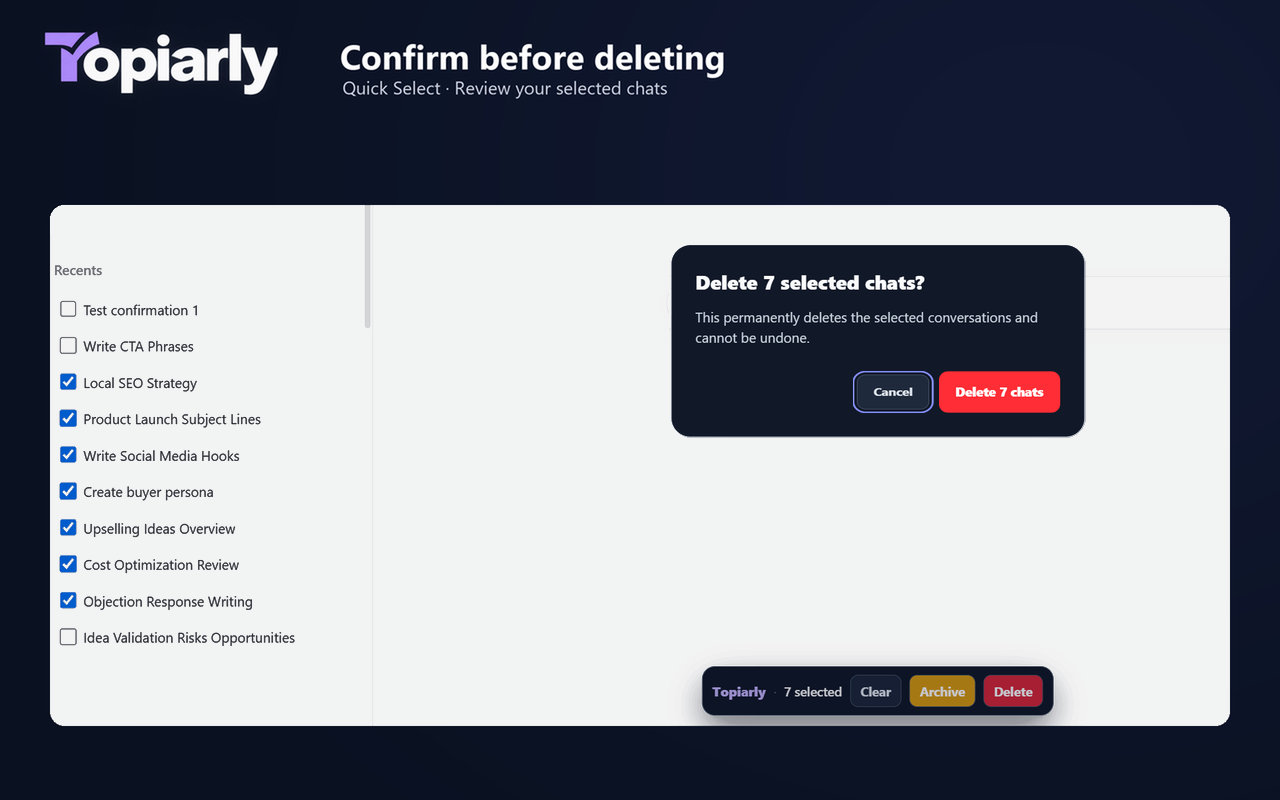
Use the checkboxes beside conversations in ChatGPT to select the chats you want. The Quick Select action bar displays your selected count and lets you clear, archive or delete that selection. You do not need to open conversations one by one.
Before deletion, review the confirmation dialog. If you may need a conversation later, archive it instead.
Read the selective deletion guide
WORKFLOW B · TOPIARLY MANAGER
Manager: select and bulk delete conversations
Open the Topiarly extension Manager to browse loaded active conversations. Select individual chats, multiple chats, or the loaded list. Check the selected count, then choose Archive or Delete. The Manager selection is separate from Quick Select.
Permanent deletion requires confirmation; Cancel keeps the conversations.
Read the bulk deletion guide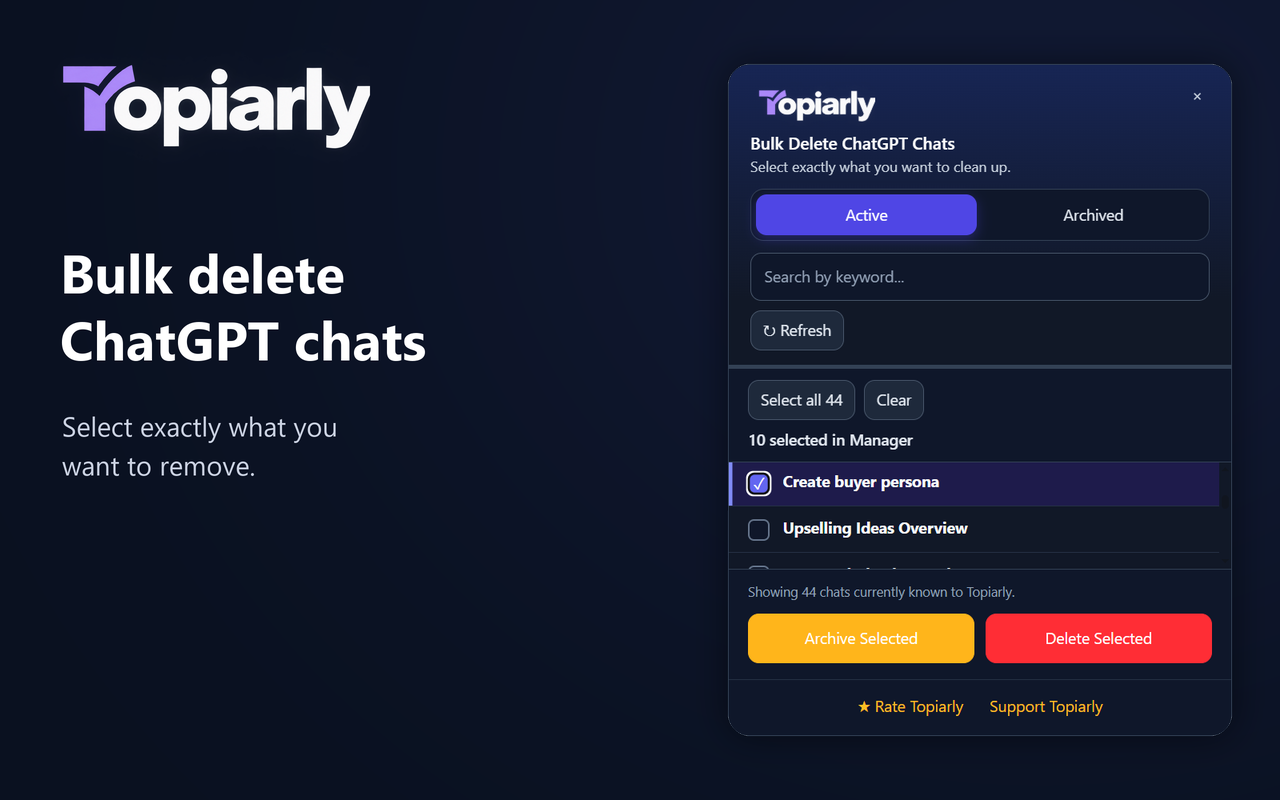
MANAGER FEATURE · ARCHIVE & RESTORE
Manage archived ChatGPT conversations
Switch to the Manager's Archived tab to review archived conversations. Select chats to unarchive them back to your active history, or delete them if no longer needed. Unarchiving does not recover deleted conversations.
Read the ChatGPT cleanup guide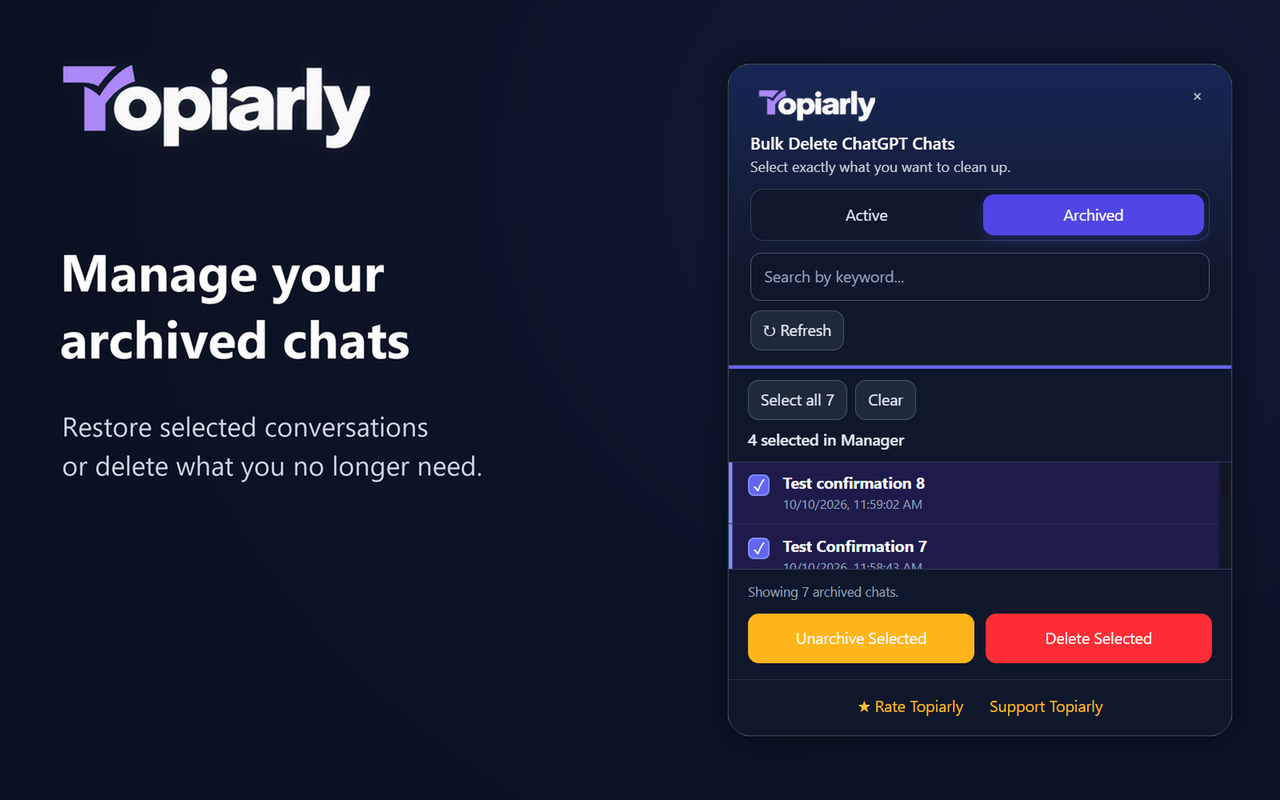
MANAGER FEATURE · SEARCH
Find loaded conversations by keyword
Search conversation titles already loaded in the Manager to narrow the list. Select matching conversations and choose what to do with them. Search does not scan the full contents of your chats.

DELETION SAFEGUARD
Review before permanent deletion
Both Quick Select and the Manager require a confirmation before deleting selected conversations. Verify the selected count, then confirm or choose Cancel. Treat deletion as permanent; archive chats you may want to revisit.
Get started in desktop Chrome
- Install Topiarly and sign in to ChatGPT.
- Choose Quick Select in the ChatGPT sidebar or open the extension Manager.
- Select the conversations you want to manage in that workspace.
- Archive, unarchive (Manager), or review and confirm deletion.
Topiarly currently supports ChatGPT only. It operates in your browser using your existing authenticated ChatGPT session; your conversations and session credentials are not sent to a Topiarly server. Read the privacy policy.
Need more detail?
These guides cover individual ChatGPT cleanup tasks in more depth.
Topiarly currently supports ChatGPT. Claude and Gemini chat management are not available in the extension.
Back to Topiarly homepage