
How to Select and Delete Specific ChatGPT Chats with Quick Select
Need to remove a handful of conversations directly from the ChatGPT sidebar? This walkthrough focuses on Topiarly Quick Select, not deleting your entire history.
When Quick Select is the right tool
After a week of debugging, your sidebar might contain failed approaches, copied error messages and two explanations worth saving. “Delete all” treats them equally. Selective deletion lets you make the distinction yourself.
Before using Quick Select: know the manual alternative
- Open ChatGPT and find an unwanted conversation.
- Open its options menu and choose Delete.
- Confirm, then repeat for the next conversation.
If there are only three unwanted chats, the built-in menu is probably quicker than installing anything. The trade-off changes when you have dozens to review.
Select specific chats in the sidebar with Quick Select
- Install Topiarly from its Chrome Web Store listing.
- Open ChatGPT in Chrome.
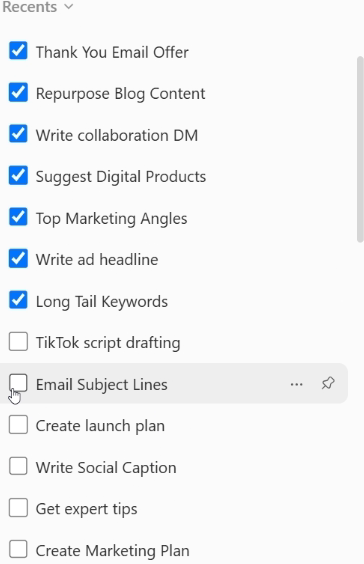
- Use Quick Select in the sidebar or open the dedicated Manager.
- Select the conversations you no longer need.
- Review the selected items and the confirmation before deleting.

Limit to know: Manager search filters loaded conversation titles. It is not a full-text search across every message.
Do a small trial batch first if you have never used a bulk action. You will learn how selection and confirmation behave without putting your entire history at risk.
Before you confirm: a 30-second safety check
- Are any selected chats part of an ongoing project?
- Would archiving be safer for uncertain conversations?
- Does the selection count match what you intended?
- Do you need to export or preserve anything important first?
Frequently asked questions
Can I select some chats without deleting my whole ChatGPT history?
Yes, a selective conversation manager such as Topiarly can help with that workflow in Chrome.
Can I undo a deletion?
OpenAI says deleted conversations cannot be recovered through the ChatGPT interface. Treat confirmation as final.
What if I want to keep a conversation but remove it from the sidebar?
Archive it instead. See our ChatGPT cleanup guide.
Manage ChatGPT conversations with more control
Topiarly helps you select, archive and delete chats in Chrome. Review each selection before deleting.
View Topiarly on Chrome Web Store ↗Related guides: Bulk delete ChatGPT conversations · All Topiarly guides · OpenAI documentation.