
How to Bulk Delete ChatGPT Conversations Without Deleting Everything
A practical way to clear old ChatGPT chats, keep useful conversations, and choose between deleting and archiving.
You know the chat is in there. Last Tuesday, ChatGPT helped you untangle a spreadsheet formula; now you need that answer again. But the sidebar is a parade of quick questions, abandoned tests and titles that all look alike. The useful conversation is somewhere in the middle.
The obvious fix—clear out the old chats—comes with a catch. You want to remove the throwaway conversations, not the project notes sitting beside them. Here are the practical options, from ChatGPT’s built-in controls to selective bulk deletion.
1. Delete a single ChatGPT conversation
For one unwanted chat, the built-in option is usually fastest:
- Open ChatGPT and find the conversation in your history.
- Open the conversation's options menu.
- Choose Delete and confirm.
Menu labels and placement can change as ChatGPT updates its interface. This method works well for a handful of chats, but it becomes repetitive when you have dozens to remove.
2. Delete all ChatGPT conversations
If you really want a fresh start, ChatGPT offers an account-level option to delete all chats. In ChatGPT, open Settings, find Data Controls, and review the option to delete all chats.
Be careful: this is not a way to select a few unwanted conversations. OpenAI states that deleted chats cannot be recovered through the interface. If you're unsure about a chat, archive it instead.
3. Bulk delete selected ChatGPT chats with Topiarly
Say you spent an afternoon testing prompts and ended up with 60 disposable chats alongside three ongoing projects. Deleting everything would be fast, but it would also destroy work you meant to keep. This is the situation selective deletion is meant to solve.
Topiarly is a Chrome extension built for that selective workflow. It offers Quick Select in the ChatGPT sidebar and a dedicated Manager for selecting and managing conversations.
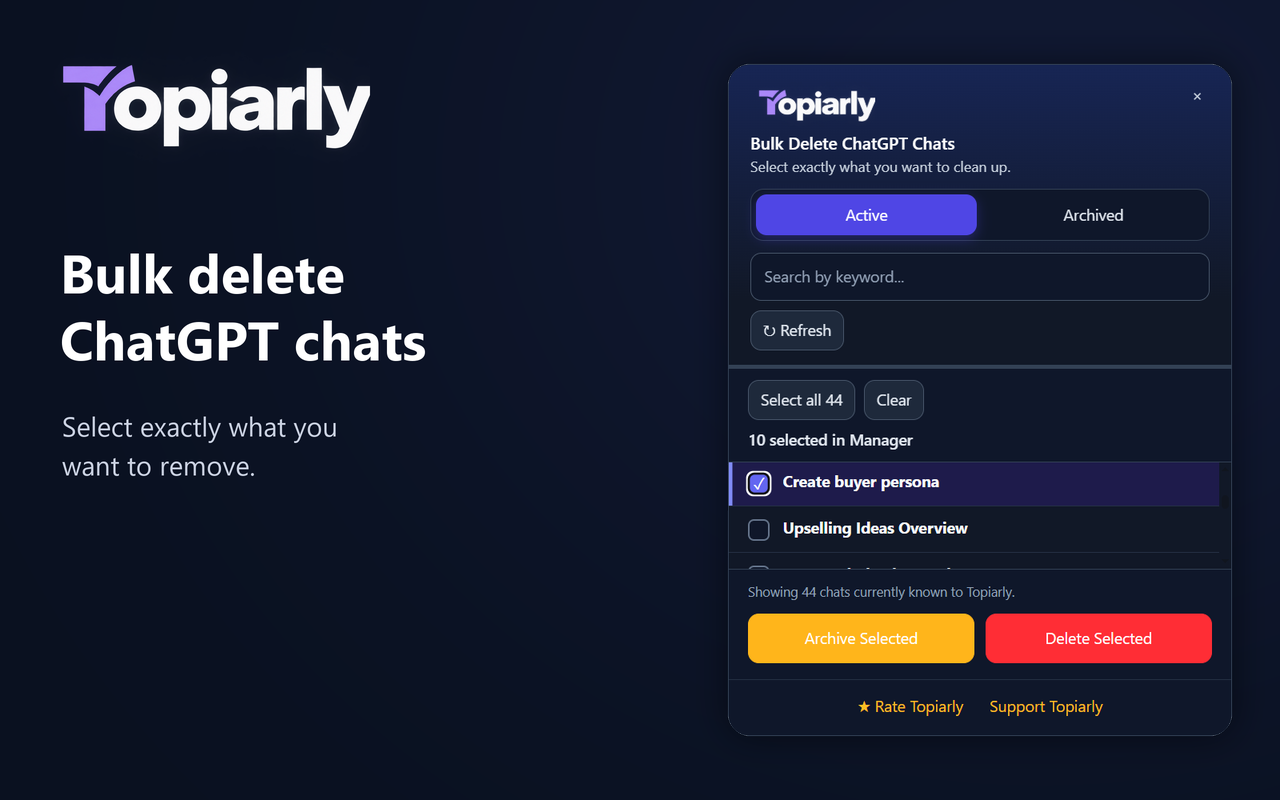
- Install Topiarly from the Chrome Web Store.
- Open ChatGPT in Chrome.
- Use Quick Select in the sidebar or open the Topiarly Manager.
- Find and select the chats you want to remove.
- Choose Delete, review the selection and count, and confirm only when you're certain.
In the Manager, search filters loaded conversation titles—it is not a search across the full text of every chat. You decide which conversations to delete; Topiarly does not automatically classify chats as unimportant.
Clear the clutter. Keep the chats that matter.
Select multiple ChatGPT conversations, review them, and manage them together with Topiarly.
Get Topiarly on Chrome Web Store ↗Chrome extension · English and Spanish
A sensible first pass is to archive anything you are uncertain about. Once the valuable chats are out of the way, the disposable ones are easier to spot.
4. Should you delete or archive a conversation?
Not every chat you want out of sight needs to disappear permanently.
Delete when…
The chat was a disposable test, a one-off question, or outdated information you no longer need.
Archive when…
The chat is useful but inactive: old research, completed project notes, or material you may revisit.
ChatGPT supports archiving, and Topiarly can archive multiple selected chats and manage archived conversations. A practical routine is to protect important chats first, archive the uncertain ones, then delete the obvious clutter.
5. A simple cleanup routine
- Keep: identify active projects and frequently referenced conversations.
- Archive: move useful but inactive chats out of your main history.
- Delete: select temporary, duplicate or irrelevant chats.
- Review: confirm your selection before a bulk deletion.
A tidy history is not a contest to reach zero chats. The useful measure is simpler: can you find the conversation you need without scrolling past last month’s experiments?
Frequently asked questions
Can I delete multiple ChatGPT chats without deleting everything?
Yes. A selective bulk-delete extension such as Topiarly lets you choose multiple chats instead of clearing your entire history.
Does ChatGPT have a built-in option to delete all chats?
Yes. ChatGPT provides an account-level delete-all option in its data controls. It is different from selecting a particular set of chats.
Can deleted ChatGPT conversations be recovered?
OpenAI says deleted chats cannot be recovered through the ChatGPT interface. Check your selection carefully before deleting.
Can I archive multiple chats instead?
Topiarly supports bulk archiving and management of archived chats. Archiving is useful when you want less clutter without permanently removing conversations.
Can Topiarly search inside every message?
No. The Manager's search filters loaded conversation titles; it does not perform full-text search across every message.
More ChatGPT cleanup guides
- How to Delete Multiple ChatGPT Chats at Once (Keep the Important Ones)
- Is a ChatGPT Bulk Delete Extension Safe? A Practical Privacy Checklist
- How to Clean Up ChatGPT History: Delete, Archive and Organize Chats
- How to Delete ChatGPT Chats on iPhone, Android and Desktop
Further reading: OpenAI Help: Delete and archive chats · Topiarly privacy policy · Topiarly support.