
How to Clean Up ChatGPT History: Delete, Archive and Organize Chats
The hard part of cleaning up ChatGPT is rarely clicking Delete. It is deciding whether a chat you have not opened in two months is clutter—or the one reference you will need next week.
The moment the sidebar stops helping
You remember a particularly good explanation from ChatGPT, but not its title. Was it in the chat about taxes, the one about spreadsheets, or that long thread you used for everything last month? This is when a busy sidebar stops being helpful.
Step 1: Identify active work
Start with conversations you would genuinely miss: active projects, prompts you reuse, research you cite and discussions you return to. If a title means nothing to you, open the chat before deciding it is disposable.
Step 2: Archive useful conversations you don't need today
Archiving removes a conversation from your active sidebar without treating it as disposable. It's a good fit for completed projects, old research and material you might revisit.
ChatGPT includes native archive controls. Topiarly also supports bulk archiving and management of archived conversations.
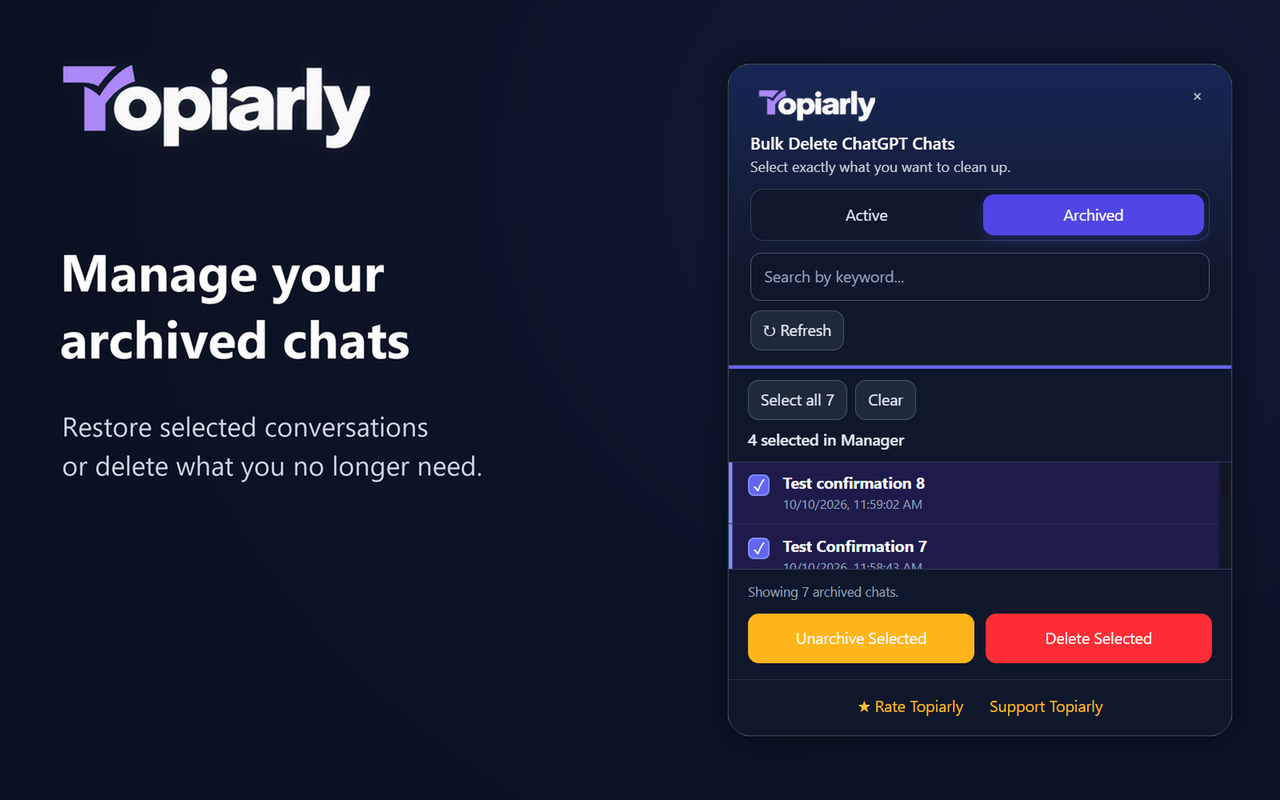
Step 3: Delete disposable chats
A quick translation, a test prompt that went nowhere, three versions of the same question: these are usually easier calls. Delete them individually if there are only a few, or use a selective bulk workflow when there are many. Further reading: multiple-chat deletion walkthrough.
Step 4: Make finding chats easier
Use descriptive conversation titles when possible and keep related work in a manageable set of conversations. Topiarly's Manager search filters loaded conversation titles; it does not search the entire text of each conversation.
A useful rule for borderline cases: archive first, then revisit later. It costs little effort and avoids making a permanent decision while you are in cleanup mode.
A ten-minute monthly routine
- Review recent conversations and identify important ongoing work.
- Archive useful but inactive chats.
- Delete obvious throwaway conversations.
- Check your remaining active chats.
Frequently asked questions
Does ChatGPT automatically delete old conversations?
Do not assume ordinary saved conversations expire just because they are old. Retention depends on chat type, user actions and OpenAI's policies. Check OpenAI's current guidance for details.
Is archiving the same as deleting?
No. Archiving retains a chat in your account; deletion removes it from history and initiates the applicable deletion process.
Should I delete thousands of chats at once?
Only if you have reviewed the consequences. Start with a small batch, preserve important work and avoid irreversible bulk actions when uncertain.
Manage ChatGPT conversations with more control
Topiarly helps you select, archive and delete chats in Chrome. Review each selection before deleting.
View Topiarly on Chrome Web Store ↗Related guides: Bulk delete ChatGPT conversations · All Topiarly guides · OpenAI documentation.